Price history
Recorded standalone sale prices and the latest available store price, in USD. Historical dots use the sale start date and its recorded offer price. Prices can change during a sale; this is not a daily price log. Bundle prices and upcoming offers are excluded. History covers up to the 100 most recent recorded offers.
Lowest recorded standalone price in this history: $19.98. The latest store price is $19.99.
View 3 recorded prices
| Sale start / price check | Price | Observation |
|---|---|---|
| $19.99 | Latest store price | |
| $19.98 | Unity Permanent Decrease 2026-07-04 2026-07-11 | |
| $29.99 | Unity First Price 2026-06-20 2026-06-27 |
Sale and bundle history
The 2 most recent recorded offers including this asset. Past offers may no longer be available. Bundle prices cover a package, not this asset alone.
About Vector Shape Tool
- Tools, Systems & Learning > Development Tools & Automation
- Art & Visuals > VFX
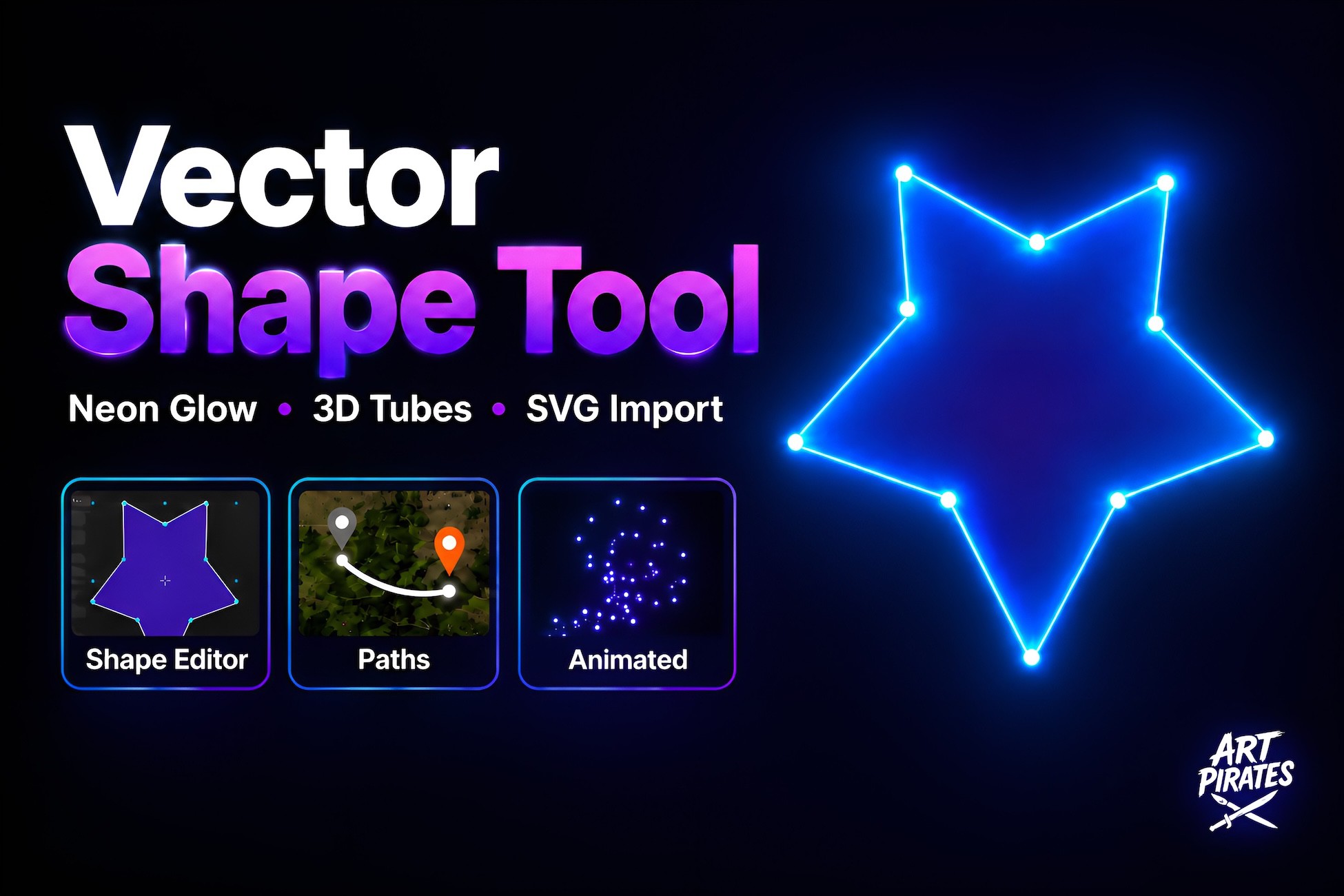
Vector Shape Tool gives you one unified Vector Shape component for working with Bezier-based shapes across many Unity workflows: world-space meshes, 2D sprites, UI graphics, raw images, neon lines, navigation paths, particle emitters, colliders, sprite masks, SVG artwork, animation, and Timeline blending. Instead of rebuilding shapes in external tools or maintaining separate systems for UI, mesh rendering, paths, particles, and colliders, you can author the shape once and choose the output mode that fits your use case. Switch the same shape between multiple output modes from a single dropdown: Renderer, Sprite Renderer, UI Graphic, UI Raw Image, Line, Particle, Polygon Collider 2D, Edge Collider 2D, Sprite Mask, and Optional SpriteShape integration. The tool automatically manages the required Unity components for each mode, such as MeshFilter, MeshRenderer, LineRenderer, RawImage, PolygonCollider2D, EdgeCollider2D, SpriteMask, or SpriteShapeRenderer. Edit shapes visually inside the Scene view: select, move, add, and delete points; edit Bezier tangents directly; use Corner, Smooth, and Symmetric point modes; multi-select points; box-select points; scale, move, and rotate the entire shape with a bounding box; use optional grid snapping; quickly switch between shape presets. Built-in presets include Rectangle, Circle, Rounded Rectangle, Triangle, Pentagon, Hexagon, and Star. The Line output is designed for stylized outlines, UI-world hybrids, effects, paths, and gameplay visuals. Line features include solid color or gradient, looping gradients for closed shapes, flat ribbon rendering, camera-facing billboard lines, real 3D tube mesh rendering, adjustable tube side count, dashed line rendering, animated dash flow, soft dash caps, wave deformation using sine or Perlin-style randomness, and keyframeable line width, dash, density, and wave properties. Vector Shape Tool includes a self-contained glow shader for neon-style lines and tubes. No bloom, HDR camera, or post-processing is required. Glow controls include additive or Alpha Blended mode, intensity, edge softness, white-hot core amount, gradient-driven glow color, and automatic glow for 3D tubes. This makes it useful for dark-scene neon effects, futuristic UI, route visualization, magic circles, hologram lines, sci-fi panels, and stylized gameplay indicators. For stronger scene integration, glowing lines can also create a soft floor wash and optional real-time point lights along the shape. Supported effects include Floor Light Spill for closed shapes or open paths, inherited or custom floor glow color, adjustable spill intensity and softness, optional real Point Lights distributed along the shape, and light count, range, height, and glow-based intensity controls. This lets a line not only look bright, but visually influence the environment around it. A shape can become a navigation route with one click using Configure As Path. Path features include dashed glowing route setup, ground conforming over collider surfaces, waypoint markers, endpoint dots, marker color, size, and lift controls, surface lift to prevent z-fighting, runtime path APIs for dynamic waypoints, ballistic trajectory arc mode, and optional ground landing point for arcs. Use it for strategy-game routes, RPG movement paths, tower-defense targeting, tactical markers, aiming previews, tutorial arrows, or navigation visualization. Any Line output can be baked into a CPU-readable mesh and used as a Particle System emission shape. Particle workflow: enable Bake Mesh For Particles, assign a Particle System, the generated mesh is automatically fed into the Particle System Shape module, particles inherit the shape color, works with flat ribbons and 3D tube meshes. Multiple Vector Shape components can share the same Particle System. The tool combines all contributors into one mesh in the particle system's local space. To keep emission fair, each different component receives its full configured emission amount, and the emission budget is balanced equally across contributing components. This prevents large or dense shapes from unintentionally consuming the entire particle budget. Import .svg files directly into a Vector Shape component. SVG support includes import from file, reload the last imported source, single-element SVG import into the current shape, multi-element SVG import as layered child shapes, per-layer visibility, per-layer color, layer reorder controls, independent styling per layer, and glow, dash, and 3D tube support per layer. Multi-element SVGs become a layered shape host, letting you manage all sub-shapes from one inspector while still styling each layer independently. Vector Shape Tool supports two UI output modes. Graphic mode creates a live MaskableGraphic mesh on a Canvas. It supports UI masking, raycasting, layout behavior, and works as a drop-in shape graphic for Unity UI. Raw Image mode rasterizes the shape into a Texture2D inside the RectTransform. It is useful when you want texture-style UI output while still editing the source shape inside Unity. Both UI modes include automatic RectTransform fitting. Width, height, and anchors are managed by the tool so the shape stays properly framed while you edit it. Vector Shape Tool is built for animation workflows. You can: enable Animatable mode, keyframe individual point positions, keyframe in/out tangents, morph between shape presets, animate line width, animate dash length and gap, animate dash density and soft caps, animate wave amplitude, wavelength, speed, phase, randomness, and axes, blend between VectorShape assets on a dedicated Timeline track. This is useful for morphing icons, animated UI, spell effects, path reveal animations, stylized motion graphics, and shape-based VFX. The same shape data can also drive gameplay and rendering support components: PolygonCollider2D for filled 2D collision, EdgeCollider2D for edge-based collision, SpriteMask for masking SpriteRenderers. Collider paths update automatically when the shape changes. The tool is designed to be practical in real projects: reusable buffers, version-guarded updates, automatic component management, proper resource cleanup, editor save-guard for particle emission scaling, graceful fallbacks when optional targets are missing, Unity 2020.3 or later support, tested on Unity 6.