Screenshots and videos
 1 / 8
Price history
Lowest recorded standalone price: FREE. Recorded observations span to . This is our available history, not a guaranteed all-time low. Bundle package prices are separate.
Standalone price
Last three months, in USD. Bundle prices cover the whole package.
About Tooltip Localization System mini
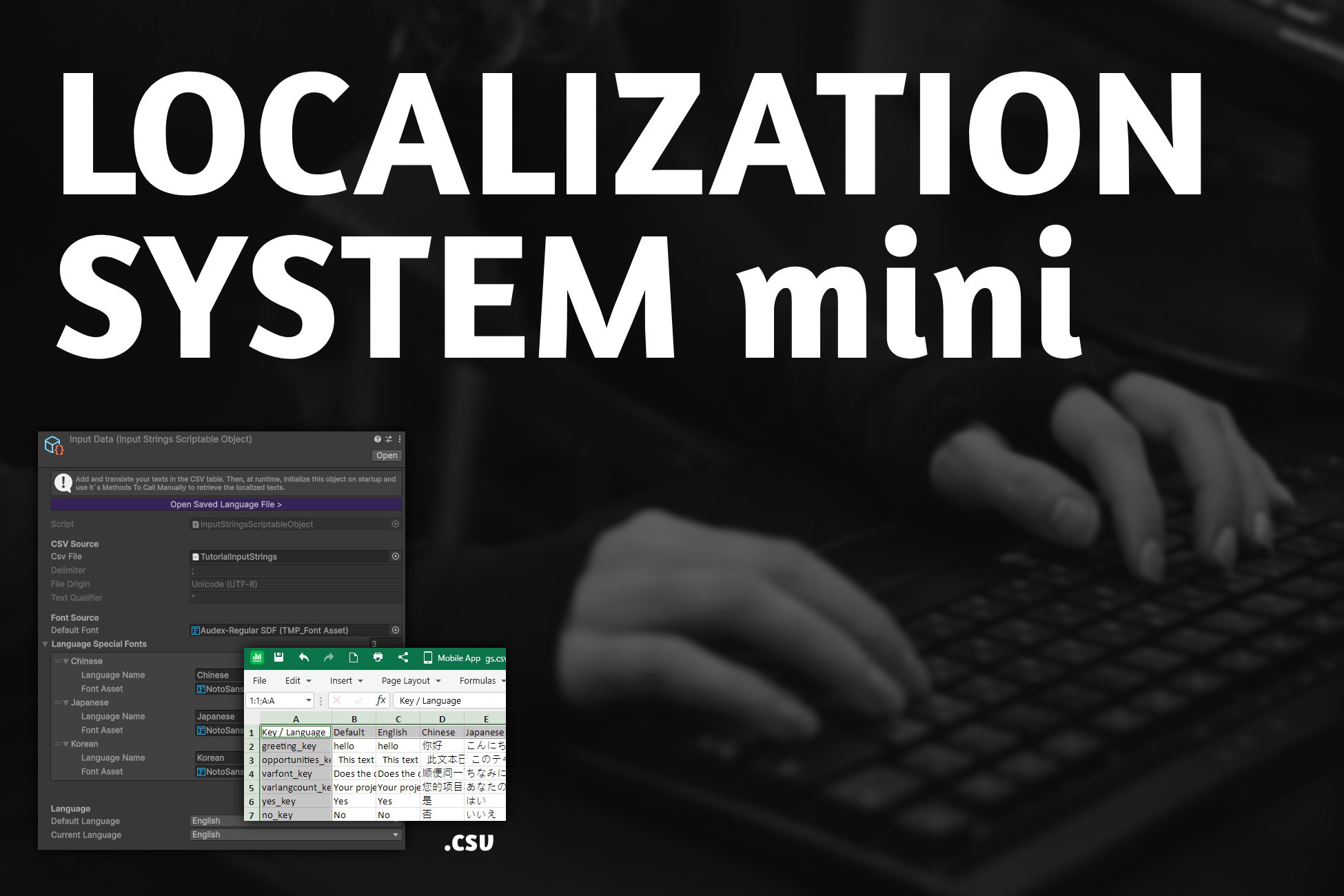
Tooltip Localization System Mini for Unity projects using TextMeshPro is based on a CSV + ScriptableObject setup. Reads a CSV file, returns the rows, switches fonts, and caches everything for optimization. Made for solo devs and indie teams who want to keep text strings out of scripts and manage translations through external editors.
The full original version of the system is used in Automatic Tutorial Maker →
FEATURES:
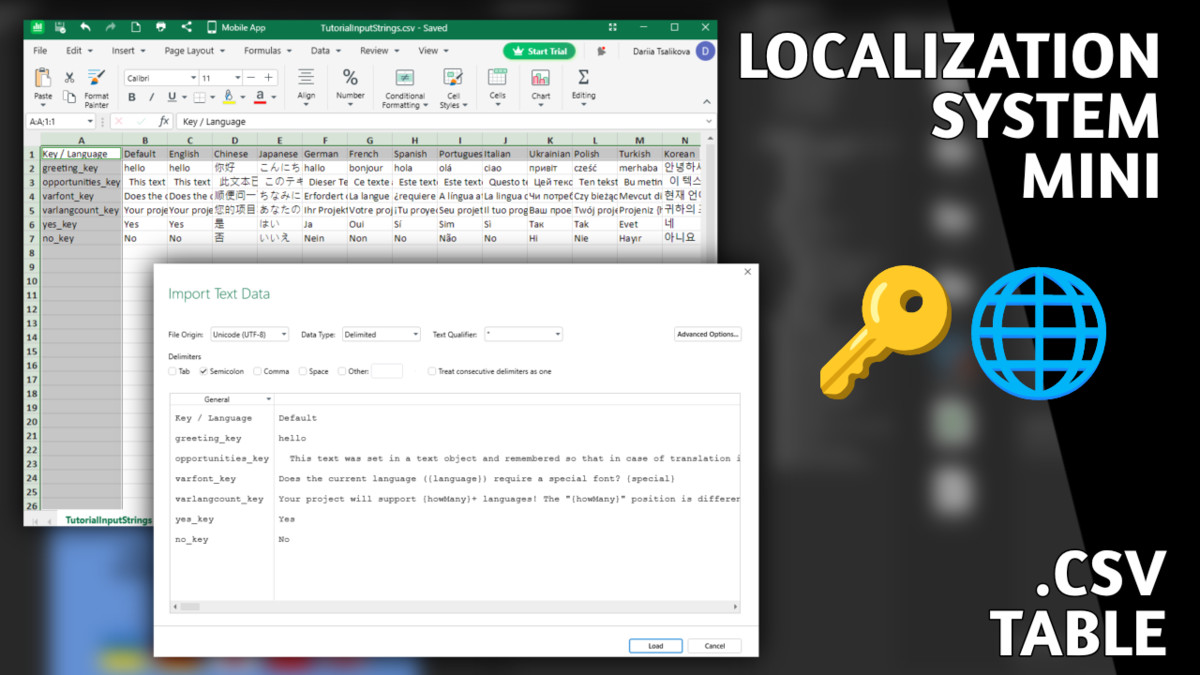
- CSV-based translations. Edit in Excel, Google Sheets, or any CSV editor. Default: ; delimiter, UTF-8, " text qualifier.
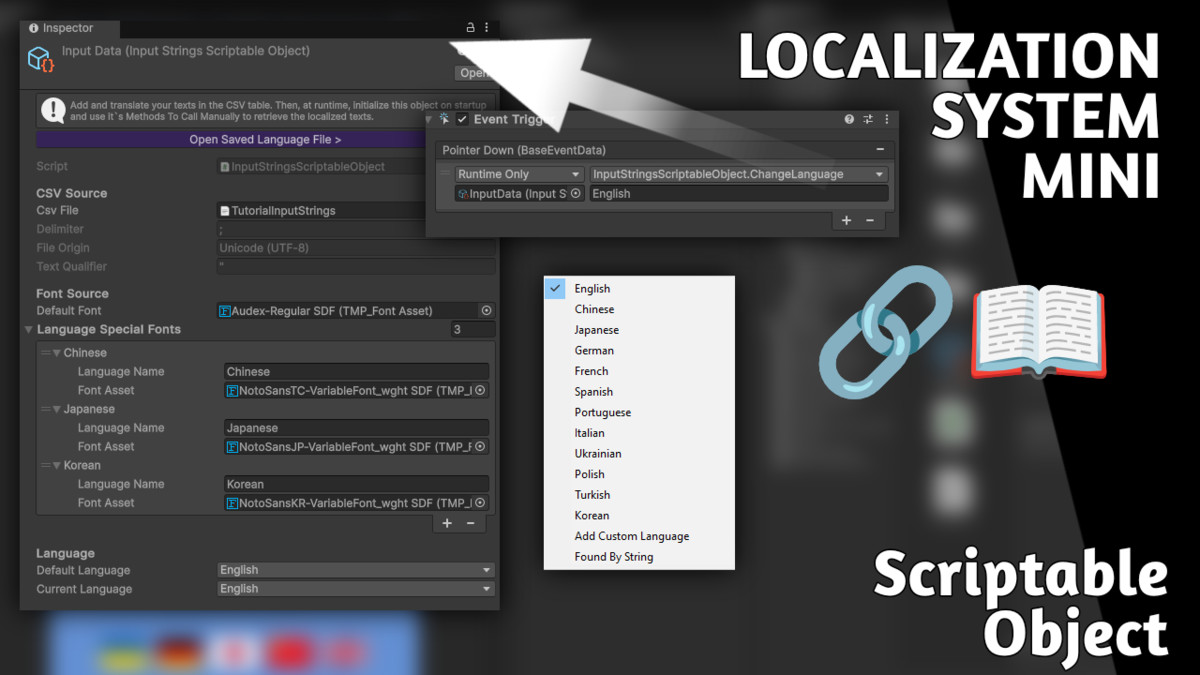
- 12+ languages included & saving language between sessions. English, Chinese, Japanese, German, French, Spanish, Portuguese, Italian, Ukrainian, Polish, Turkish, Korean. Add custom via Language enum or column name.
- Automatic font switching. Assign fonts per language (e.g., NotoSansTC for Chinese), auto-applies on change. Includes Noto Sans CJK + Audex fonts with licenses.
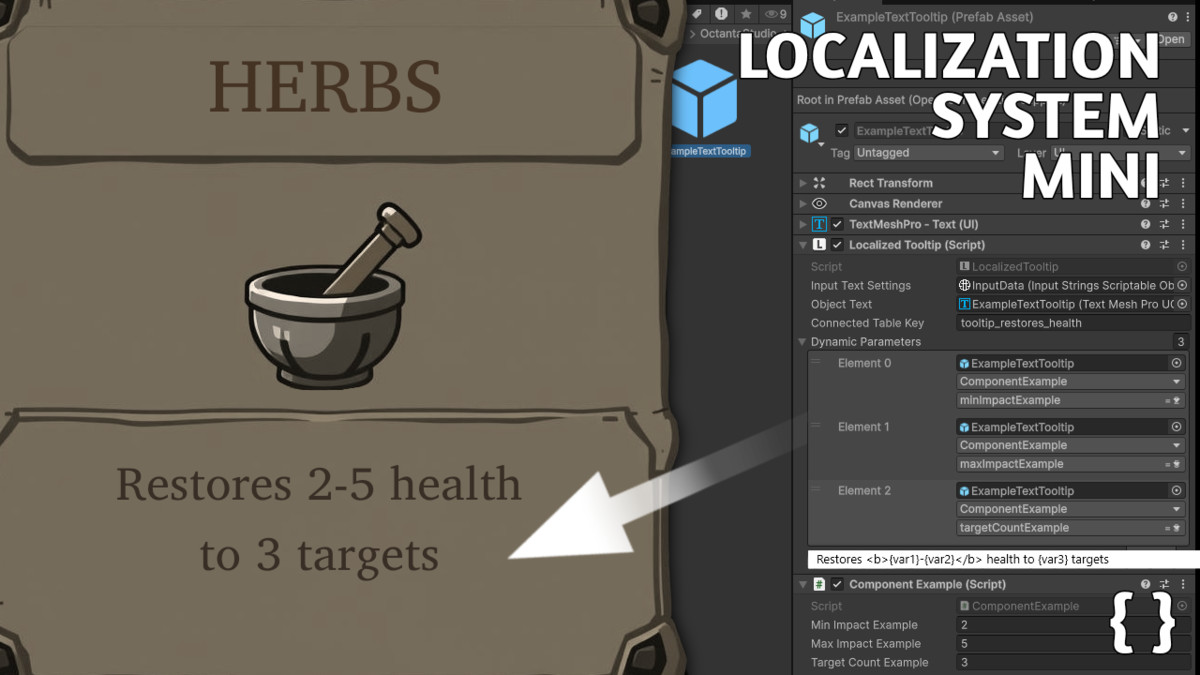
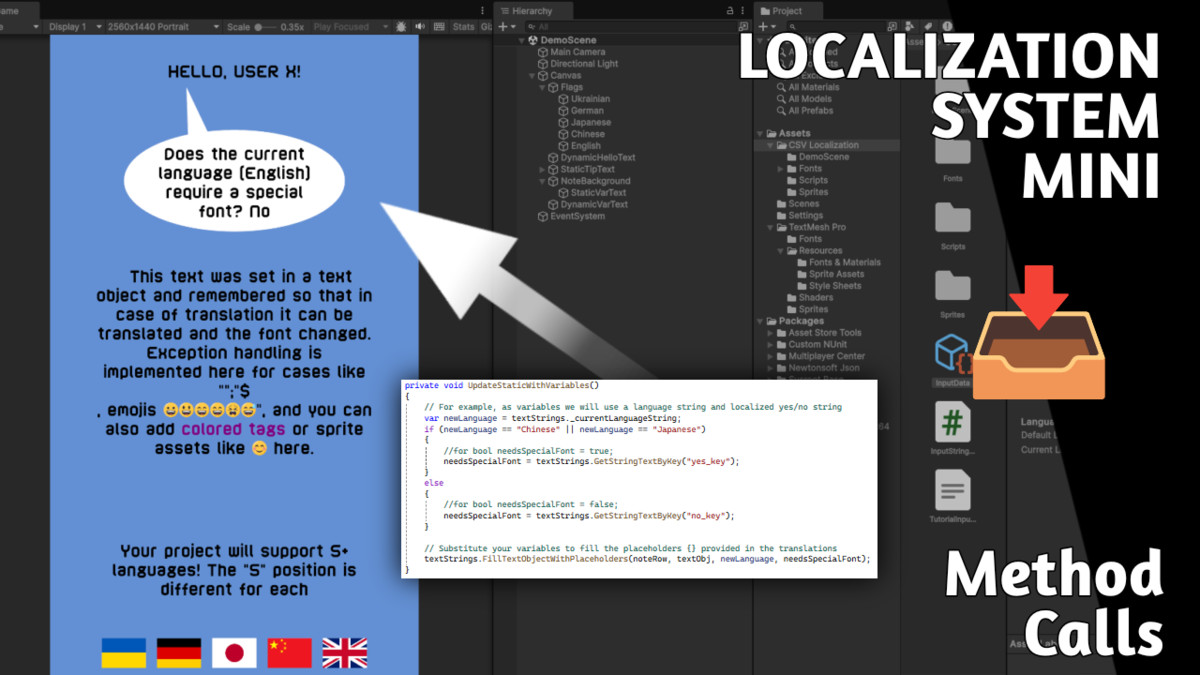
- Dynamic placeholders. Insert variables: {playerName}, {score}, {anyVariable} → filled at runtime. There is a Parameter Selector for assigning a reference to any custom variable of any custom component.
- TextMeshPro tags support. Use , , emojis directly in translations.
- Static Mode. Cache text objects, auto-update on language change, including font switching (efficient for menus/UI)
- Dynamic Mode. Read strings per-frame, no built-in font switching (for scores/timers, cached lookups)
CREATE TEXT TOOLTIPS:
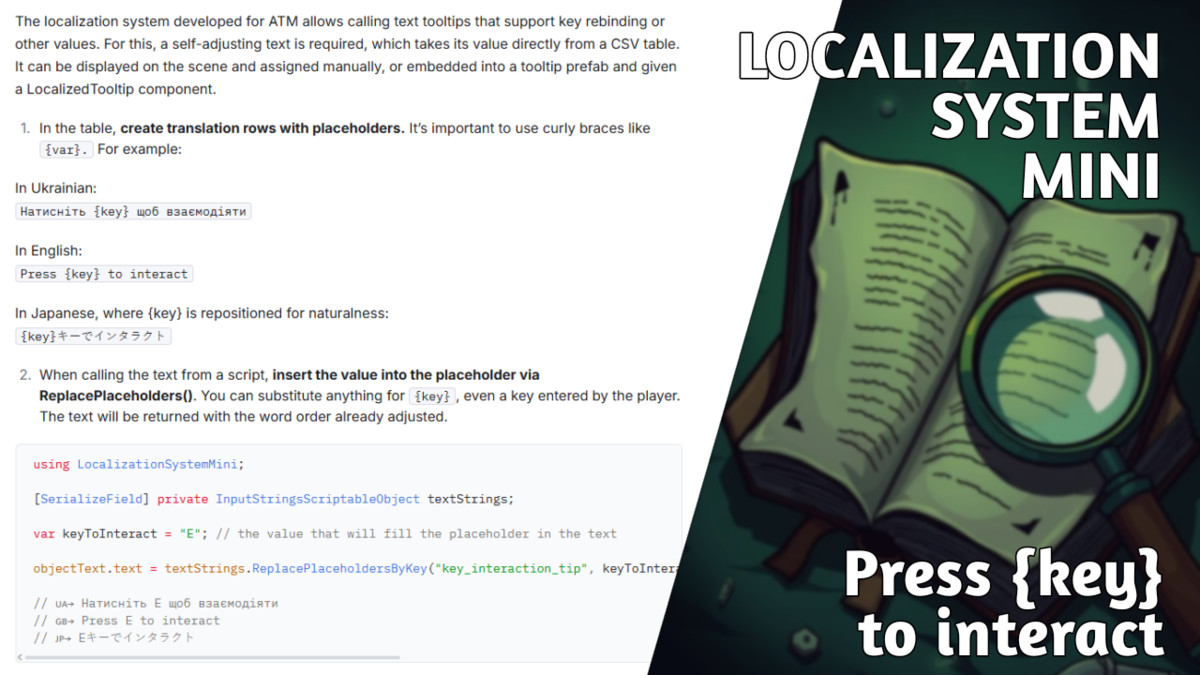
The system can be used to show text tooltips that support value substitution. For example, add the entry "Press {key} to interact" to the table, along with its translations. Then call ReplacePlaceholders in your script, specifying the row containing the text and passing the variable for substitution. The variable can be a system-defined key or one reassigned by the player.
During translation, the system replaces the {key} placeholder with the variable. In different languages, placeholders may appear in different positions to preserve natural phrasing. Multiple placeholders can exist in a sentence, but their order must be maintained.
DEMO:
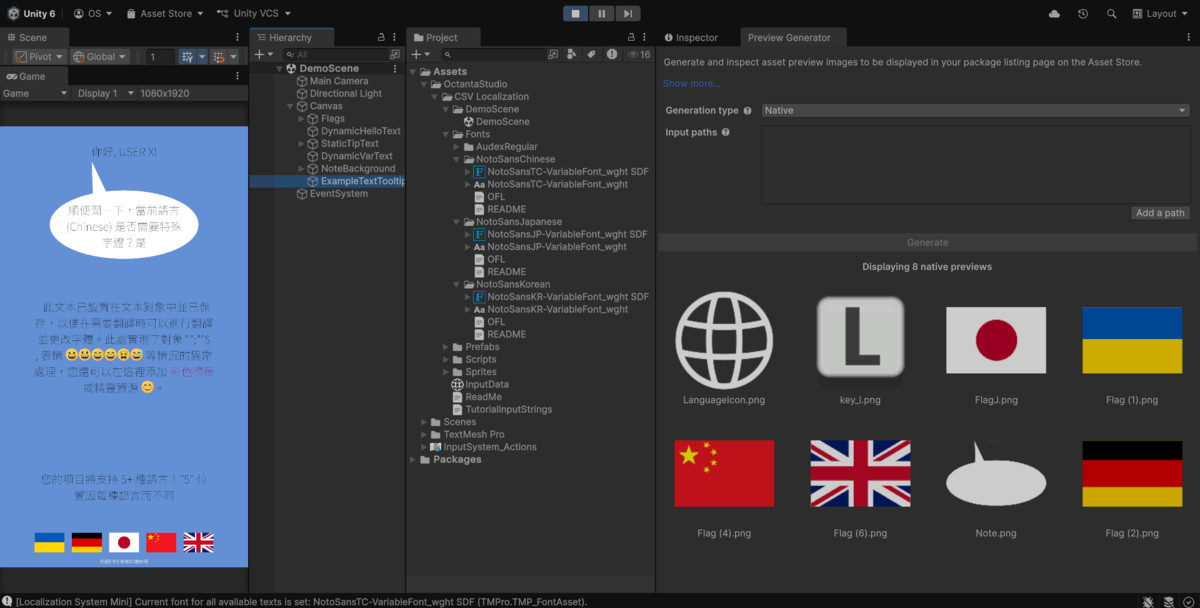
Open DemoScene to see all features in action.
STRUCTURE:
🗒️ A CSV table with translations. The first row contains language names, each language has its own column. Retrieve specific text by accessing rows.
🔗 A Scriptable Object. It stores the CSV as a Text Asset and handles operations: parses it into an array and contains methods for further reading. This can be called from other scripts, for example:
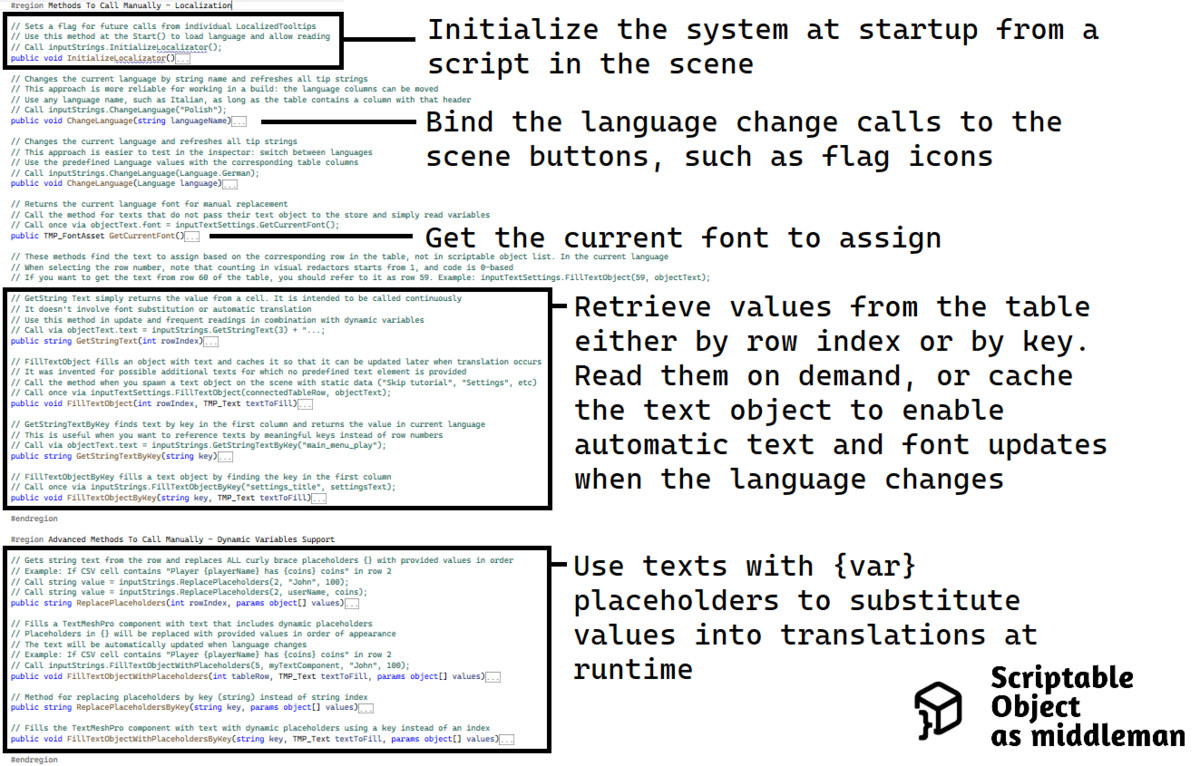
InitializeLocalizator(); // Parses CSV, remembers current language on start, let's say "Eng"
GetStringText(2); // Returns string from row 2 and current language column = "menu"
FillTextObject(2, textObj); // Passes to textObj.text = "menu"; caches textObj and row
ChangeLanguage("Jap"); // Overwrites current language
TranslateAllTexts(); // Replaces text for all cached objects (same row, different column). Having text objects in cache allows changing their font right there, for example, if hieroglyphs are needed
At localization to Chinese, using Traditional Chinese is recommended.
USAGE:
1. Fill the CSV table with your texts and translations
2. On Start() > add InitializeLocalizator call
3. Bind ChangeLanguage method to buttons that switch language
4. When spawning text > call FillTextObject for it, so it translates itself and changes font automatically
5. If you just need the value > call GetStringText
💡Maintain a column in the table with text keys to access rows by them rather than by indices:
using LocalizationSystemMini;
[SerializeField] private InputStringsScriptableObject textStrings;
var hi = textStrings.GetStringTextByKey("hi_key");
var userName = "..."; // Player name
textObj.text = $"{hi}, {userName}";
// If needed, update the font manually
textObj.font = textStrings.GetCurrentFont();
This way the code will have access to localized text and output it to the scene.
➕ To add a language and edit translations, just open the CSV. You can translate an entire column by running it through a translator. Or work with localizers who don't have access to/affinity for the inspector.
The full original version of the system is used in Automatic Tutorial Maker →
FEATURES:
- CSV-based translations. Edit in Excel, Google Sheets, or any CSV editor. Default: ; delimiter, UTF-8, " text qualifier.
- 12+ languages included & saving language between sessions. English, Chinese, Japanese, German, French, Spanish, Portuguese, Italian, Ukrainian, Polish, Turkish, Korean. Add custom via Language enum or column name.
- Automatic font switching. Assign fonts per language (e.g., NotoSansTC for Chinese), auto-applies on change. Includes Noto Sans CJK + Audex fonts with licenses.
- Dynamic placeholders. Insert variables: {playerName}, {score}, {anyVariable} → filled at runtime. There is a Parameter Selector for assigning a reference to any custom variable of any custom component.
- TextMeshPro tags support. Use , , emojis directly in translations.
- Static Mode. Cache text objects, auto-update on language change, including font switching (efficient for menus/UI)
- Dynamic Mode. Read strings per-frame, no built-in font switching (for scores/timers, cached lookups)
CREATE TEXT TOOLTIPS:
The system can be used to show text tooltips that support value substitution. For example, add the entry "Press {key} to interact" to the table, along with its translations. Then call ReplacePlaceholders in your script, specifying the row containing the text and passing the variable for substitution. The variable can be a system-defined key or one reassigned by the player.
During translation, the system replaces the {key} placeholder with the variable. In different languages, placeholders may appear in different positions to preserve natural phrasing. Multiple placeholders can exist in a sentence, but their order must be maintained.
DEMO:
Open DemoScene to see all features in action.
STRUCTURE:
🗒️ A CSV table with translations. The first row contains language names, each language has its own column. Retrieve specific text by accessing rows.
🔗 A Scriptable Object. It stores the CSV as a Text Asset and handles operations: parses it into an array and contains methods for further reading. This can be called from other scripts, for example:
InitializeLocalizator(); // Parses CSV, remembers current language on start, let's say "Eng"
GetStringText(2); // Returns string from row 2 and current language column = "menu"
FillTextObject(2, textObj); // Passes to textObj.text = "menu"; caches textObj and row
ChangeLanguage("Jap"); // Overwrites current language
TranslateAllTexts(); // Replaces text for all cached objects (same row, different column). Having text objects in cache allows changing their font right there, for example, if hieroglyphs are needed
At localization to Chinese, using Traditional Chinese is recommended.
USAGE:
1. Fill the CSV table with your texts and translations
2. On Start() > add InitializeLocalizator call
3. Bind ChangeLanguage method to buttons that switch language
4. When spawning text > call FillTextObject for it, so it translates itself and changes font automatically
5. If you just need the value > call GetStringText
💡Maintain a column in the table with text keys to access rows by them rather than by indices:
using LocalizationSystemMini;
[SerializeField] private InputStringsScriptableObject textStrings;
var hi = textStrings.GetStringTextByKey("hi_key");
var userName = "..."; // Player name
textObj.text = $"{hi}, {userName}";
// If needed, update the font manually
textObj.font = textStrings.GetCurrentFont();
This way the code will have access to localized text and output it to the scene.
➕ To add a language and edit translations, just open the CSV. You can translate an entire column by running it through a translator. Or work with localizers who don't have access to/affinity for the inspector.
More from Octanta Studio
- Dynamic Photo Camera: in-game interactive photos with multi-platform support $20
- Automatic Tutorial Maker: tool for creating customizable learning steps $40
- Dynamic Photo Camera mini FREE