Unity
Layers of Visibility Manager
By fables alive games · tools/utilities
$11.11
Log in to track this asset
Last checked . Prices and availability may change.
About Layers of Visibility Manager
Simple and Intuitive Scene Organization
What is Layers of Visibility Manager?
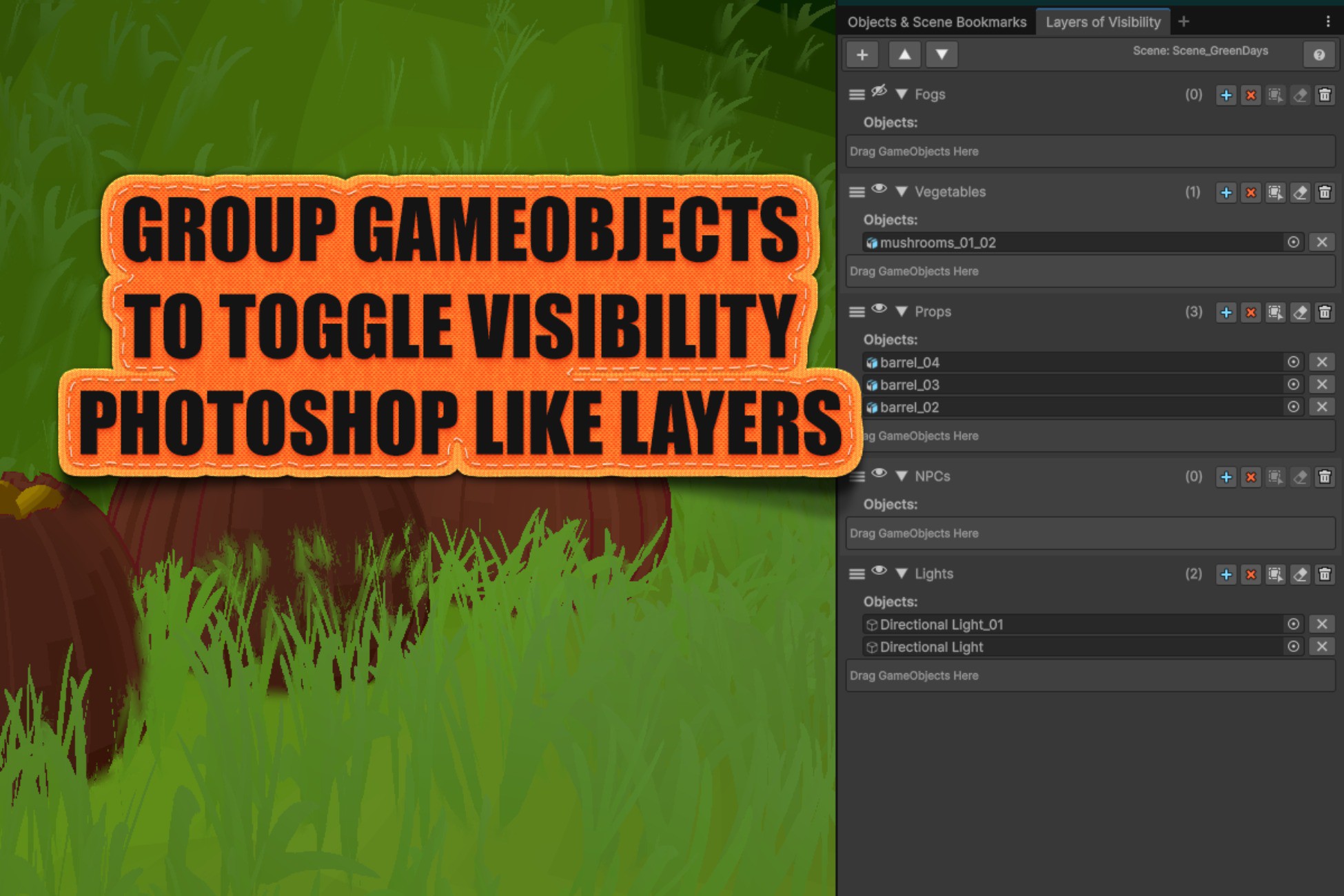
Layers of Visibility Manager helps you organize and control scene GameObjects efficiently. Group objects into layers and toggle their visibility with a single click.
Key Features
• Quick Organization - Group related GameObjects into named layers
• Instant Visibility Control - Show/hide entire groups with one click
• Drag & Drop - Reorder layers and add objects easily
• Scene-Based - Each scene has its own layer setup
• Clean Interface - Minimal, focused design
How to Use
Opening the Window
Tools > Fables Alive Games > Layers of Visibility Manager
Or use keyboard shortcut: Ctrl+Shift+Alt+L
Creating Layers
1. Click + button to add a new layer
2. Rename the layer by clicking on its name
3. Use collapse/expand buttons to manage all layers at once
Adding Objects
• Select GameObjects in Hierarchy
• Expand the layer (click arrow)
• Click + Add Selected Objects button
Or drag GameObjects directly into the layer's drop area
Organizing
• Drag handle to reorder layers
• Eye icon to show/hide all objects in layer
• Arrow to expand/collapse layer details
• Delete button to remove layer
Perfect For
• Managing complex scenes with many objects
• Quick prototyping and testing
• Level design workflows
• Organizing UI elements
• Scene cleanup and optimization
What is Layers of Visibility Manager?
Layers of Visibility Manager helps you organize and control scene GameObjects efficiently. Group objects into layers and toggle their visibility with a single click.
Key Features
• Quick Organization - Group related GameObjects into named layers
• Instant Visibility Control - Show/hide entire groups with one click
• Drag & Drop - Reorder layers and add objects easily
• Scene-Based - Each scene has its own layer setup
• Clean Interface - Minimal, focused design
How to Use
Opening the Window
Tools > Fables Alive Games > Layers of Visibility Manager
Or use keyboard shortcut: Ctrl+Shift+Alt+L
Creating Layers
1. Click + button to add a new layer
2. Rename the layer by clicking on its name
3. Use collapse/expand buttons to manage all layers at once
Adding Objects
• Select GameObjects in Hierarchy
• Expand the layer (click arrow)
• Click + Add Selected Objects button
Or drag GameObjects directly into the layer's drop area
Organizing
• Drag handle to reorder layers
• Eye icon to show/hide all objects in layer
• Arrow to expand/collapse layer details
• Delete button to remove layer
Perfect For
• Managing complex scenes with many objects
• Quick prototyping and testing
• Level design workflows
• Organizing UI elements
• Scene cleanup and optimization