About Fullscreen Editor Play Mode - FREE
- Tools, Systems & Learning > Development Tools & Automation
Overview
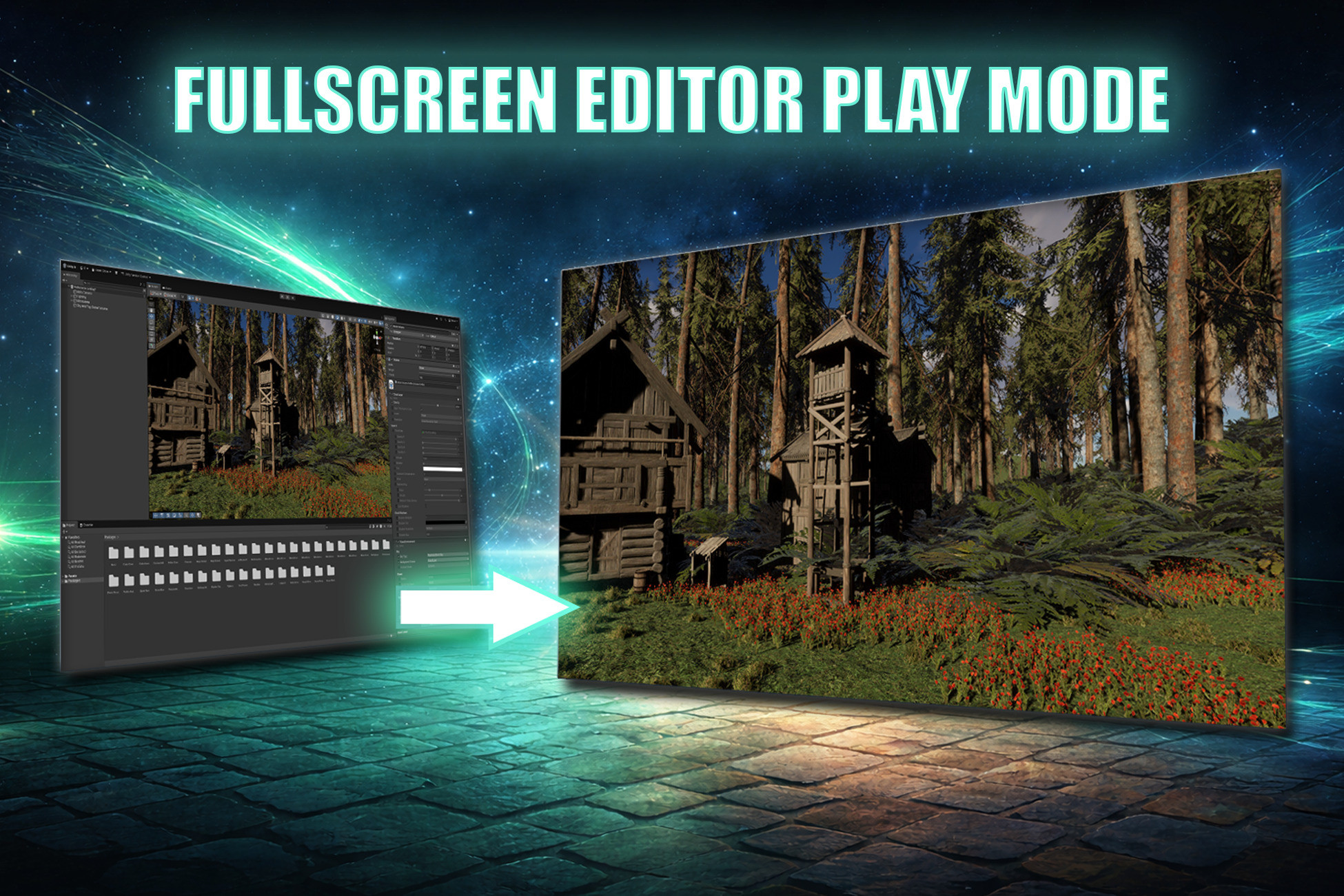
Fullscreen Game View inside the Unity Editor during Play Mode. Useful if you need to make a quick video for e. g. Youtube without having to wait for a build to finish. No build required. Unity had a fullscreen mode a few Unity releases ago and removed it for several reasons. This solution aims at being a workaround to not having a fullscreen mode at all.
Free vs Support the Dev Edition
The Free and the Support the Dev Edition are identical. The Support the Dev Edition is available in case you find the asset useful for your workflow and you would like to support the developer and future development.
Editions
Fullscreen Editor Play Mode - FREE
Fullscreen Editor Play Mode - Support the Dev Edition
Quick Start
1. Import the package
2. Enter Play Mode
3. Press F11
That is it. Press F11 again or Escape to return to the normal editor. You can adjust key bind and auto fullscreen mode via editor preferences.
Features
The asset provides the following features:
Fullscreen during editor play mode - hides Unity Editor UI (menus, toolbar, status bar, window tabs) and covers the Windows taskbar or macOS Dock
Zero-overhead rendering - the original Game View is redirected to an unused display, so there is no double-rendering performance cost
Toggle with a single key - press F11 to enter or exit fullscreen instantly during Play Mode. Press Escape to exit without stopping play
Auto-fullscreen on Play - optionally enter fullscreen automatically every time you press Play, configurable via the Tools menu or Preferences
Configurable keybinds - change the toggle and exit keys in editor preferences
Stats and Gizmos preserved - overlay states from your Game View are carried over to the fullscreen window
Cross-platform - support for Windows (Win32) and macOS (Objective-C runtime)
New Input System - uses the Unity Input System package for key detection. Compatible with projects using the new Input System exclusively or alongside the legacy Input Manager
Clean architecture - separated Runtime and Editor assemblies with proper assembly definitions. Nothing is included in your builds
Safety fallback using Reset menu option
Full source code
No DLL
Limitations
The asset uses plain Unity means, as such it is limited to what Unity provides as API and also regarding compatibility.
Requirements
Unity 6.000.40+ (required for hiding the Game View toolbar via the internal showToolbar property)
Input System package installed and enabled
Platforms
Windows (Win32 API for taskbar coverage)
macOS (Objective-C runtime for Dock/menu bar coverage)
Fullscreen Game View inside the Unity Editor during Play Mode. Useful if you need to make a quick video for e. g. Youtube without having to wait for a build to finish. No build required. Unity had a fullscreen mode a few Unity releases ago and removed it for several reasons. This solution aims at being a workaround to not having a fullscreen mode at all.
Free vs Support the Dev Edition
The Free and the Support the Dev Edition are identical. The Support the Dev Edition is available in case you find the asset useful for your workflow and you would like to support the developer and future development.
Editions
Fullscreen Editor Play Mode - FREE
Fullscreen Editor Play Mode - Support the Dev Edition
Quick Start
1. Import the package
2. Enter Play Mode
3. Press F11
That is it. Press F11 again or Escape to return to the normal editor. You can adjust key bind and auto fullscreen mode via editor preferences.
Features
The asset provides the following features:
Fullscreen during editor play mode - hides Unity Editor UI (menus, toolbar, status bar, window tabs) and covers the Windows taskbar or macOS Dock
Zero-overhead rendering - the original Game View is redirected to an unused display, so there is no double-rendering performance cost
Toggle with a single key - press F11 to enter or exit fullscreen instantly during Play Mode. Press Escape to exit without stopping play
Auto-fullscreen on Play - optionally enter fullscreen automatically every time you press Play, configurable via the Tools menu or Preferences
Configurable keybinds - change the toggle and exit keys in editor preferences
Stats and Gizmos preserved - overlay states from your Game View are carried over to the fullscreen window
Cross-platform - support for Windows (Win32) and macOS (Objective-C runtime)
New Input System - uses the Unity Input System package for key detection. Compatible with projects using the new Input System exclusively or alongside the legacy Input Manager
Clean architecture - separated Runtime and Editor assemblies with proper assembly definitions. Nothing is included in your builds
Safety fallback using Reset menu option
Full source code
No DLL
Limitations
The asset uses plain Unity means, as such it is limited to what Unity provides as API and also regarding compatibility.
Requirements
Unity 6.000.40+ (required for hiding the Game View toolbar via the internal showToolbar property)
Input System package installed and enabled
Platforms
Windows (Win32 API for taskbar coverage)
macOS (Objective-C runtime for Dock/menu bar coverage)