Price history
Recorded standalone sale prices and the latest available store price, in USD. Historical dots use the sale start date and its recorded offer price. Prices can change during a sale; this is not a daily price log. Bundle prices and upcoming offers are excluded. History covers up to the 100 most recent recorded offers.
Lowest recorded standalone price in this history: $11.90. The latest store price is $17.
View 4 recorded prices
| Sale start / price check | Price | Observation |
|---|---|---|
| $17 | Latest store price | |
| $11.90 | Unity New Release Discount 2026-09-04 2026-09-11 | |
| $11.90 | Unity New Release Discount 2026-09-04 2026-09-11 | |
| $17 | Unity First Price 2026-09-04 2026-09-04 |
Sale and bundle history
The 3 most recent recorded offers including this asset. Past offers may no longer be available. Bundle prices cover a package, not this asset alone.
About EPI - Editor Project Icon Changer
- Tools, Systems & Learning > Development Tools & Automation
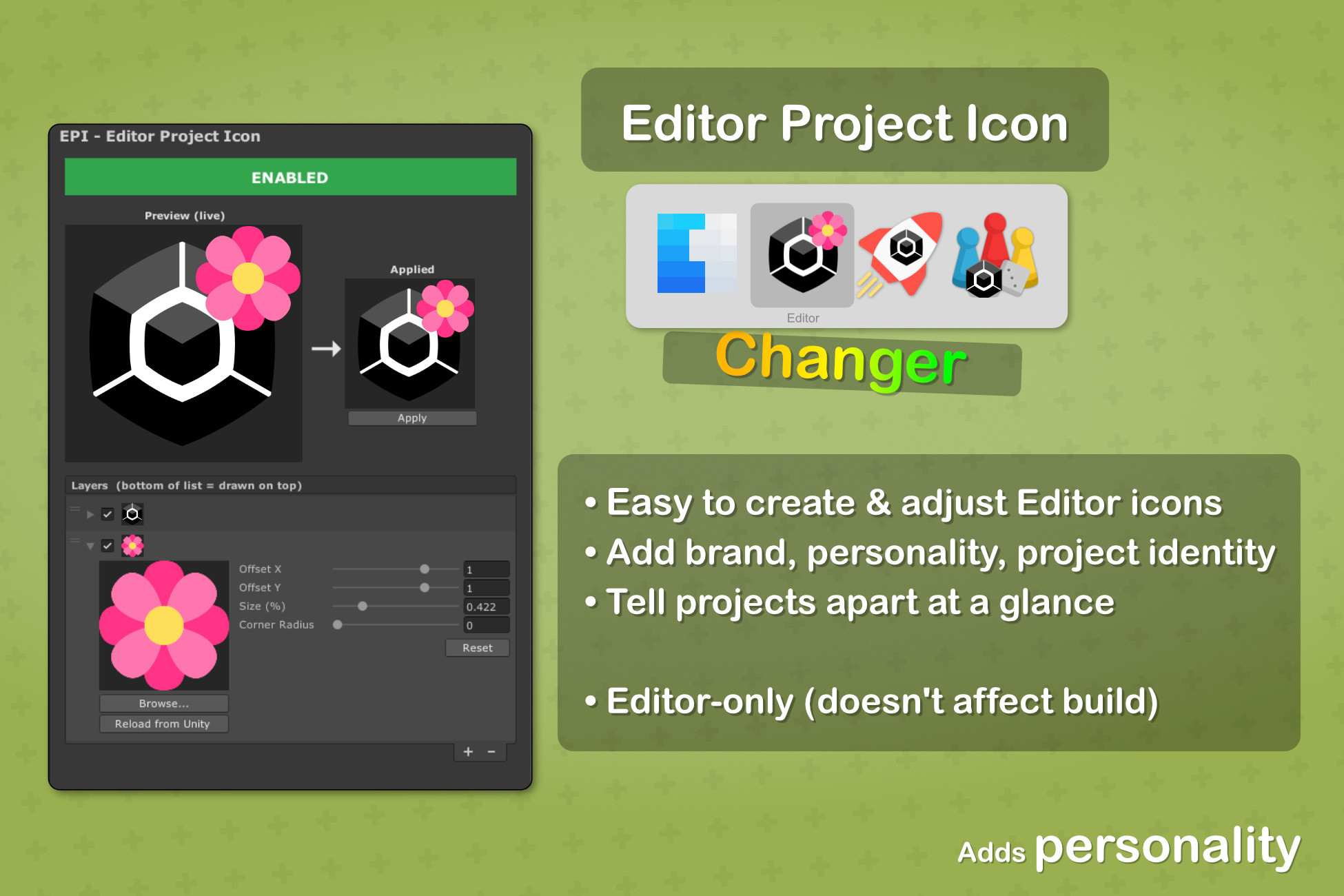
Stop hunting for the right Editor window in your Dock and taskbar. If you work with multiple projects, every open Editor looks identical — same icon, easy to pick incorrect Editor and spend time waiting. EPI Changer fixes that by giving each project its own custom Editor icon. The icon lives with the project in version control, so every teammate sees the same visual identity the moment they open the project.
Drop in any PNG or JPG as a background, stack an overlay on top (your studio logo, a build-flavor badge, a WIP sticker — anything), tweak position, size, and corner radius with sliders — Live Preview updates as you drag. One click on Apply pushes the composed icon to the running Editor.
Why teams use it:
- Tell projects apart at a glance in the Dock, taskbar, and Alt-Tab
- Brand a project so screen-shares and screenshots carry project identity
- Mark environments (prod, staging, sandbox) or build flavors with a single icon
- Version-controlled per-project — the icon follows the project for consistency
- Editor-only — nothing ships to player builds
Easy to use: Install package, open Project Settings, pick your images, hit Apply. Two minutes from install to a recognizable Editor.
Drop in any PNG or JPG as a background, stack an overlay on top (your studio logo, a build-flavor badge, a WIP sticker — anything), tweak position, size, and corner radius with sliders — Live Preview updates as you drag. One click on Apply pushes the composed icon to the running Editor.
Why teams use it:
- Tell projects apart at a glance in the Dock, taskbar, and Alt-Tab
- Brand a project so screen-shares and screenshots carry project identity
- Mark environments (prod, staging, sandbox) or build flavors with a single icon
- Version-controlled per-project — the icon follows the project for consistency
- Editor-only — nothing ships to player builds
Easy to use: Install package, open Project Settings, pick your images, hit Apply. Two minutes from install to a recognizable Editor.